
Managing Bad Instances in a Sitecore PaaS Environment
Occasionally, you may run into a bad instance with hung processes or connections in a Sitecore Azure PaaS Environment. When this occurs, there are few options for managing these instances… in order from least impactful to most impactful on your Application Service.
Health Check
Azure App Services have a Health Check feature, within the Monitoring section of the Azure App Service blade, that can check for bad instances and recycle an instance automatically that has gone unhealthy. Note that:
At most, one instance will be replaced per hour, with a maximum of three instances per day per App Service Plan – Monitor the health of App Service instances – Azure App Service | Microsoft Learn
I use the /healthz/live endpoint to check an instance’s health per: Monitoring the health of web roles | Sitecore Documentation
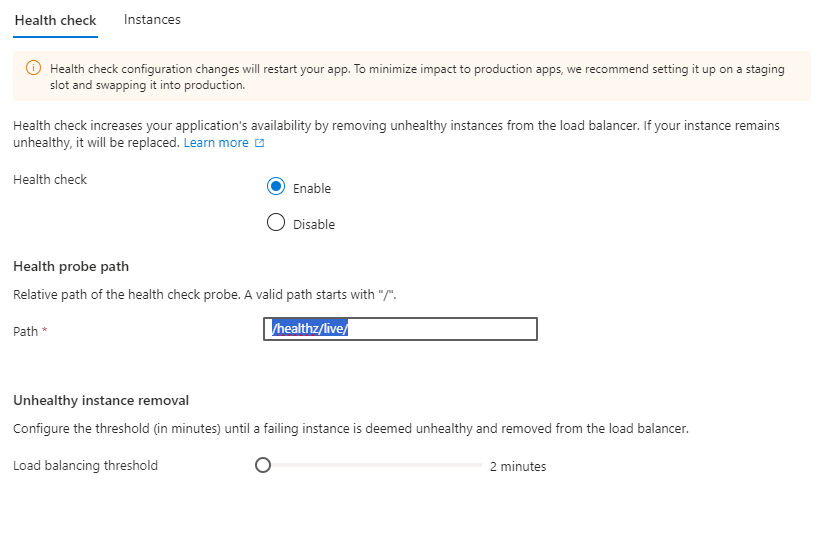
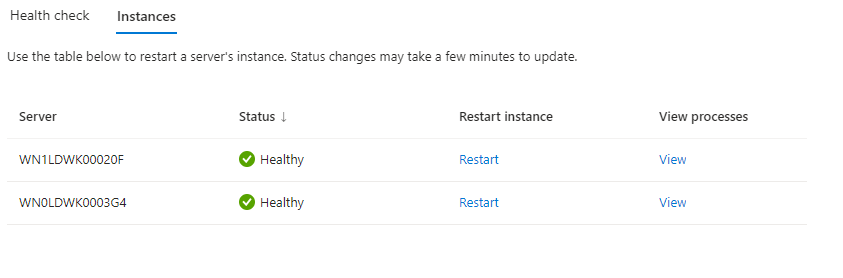
You can view the status of your instances within the Instances tab of Health Check, inclusive of viewing and terminating processes if necessary. Additionally, if you have surpassed your 1 per hour or 3 per day max automatic restart, you can perform a manual restart via this page. Of note, if you have constant bad instances, it is likely indicative of a code or configuration issue you need to resolve.
Advanced Application Restart
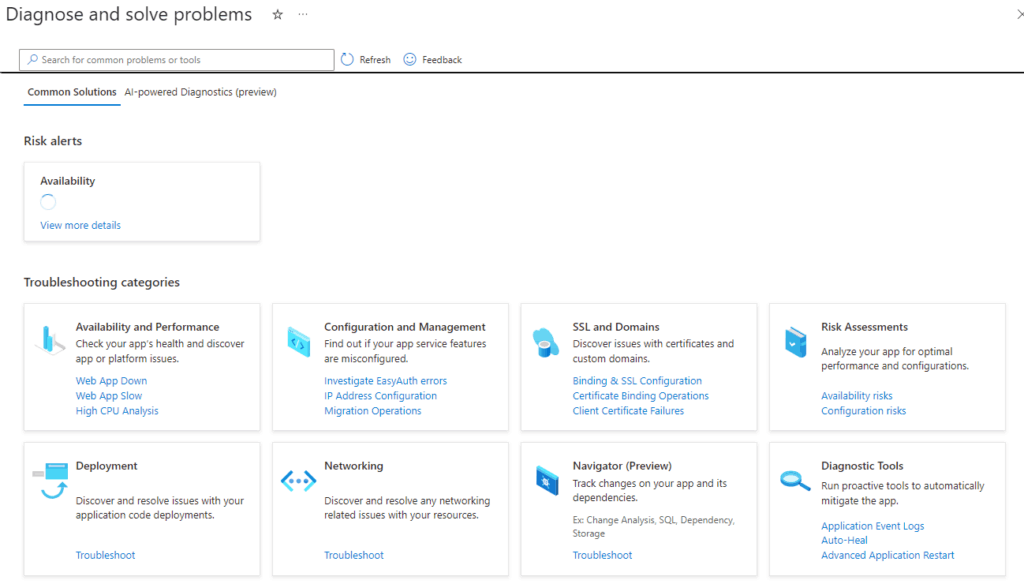
Advanced Application Restart is a step up from Health Check in that you can set a rolling restart of your instances. Available under the “Diagnose and Solve Problems” link of the Azure App Service blade, select the Advanced Application Restart link from the Diagnostic Tools category:
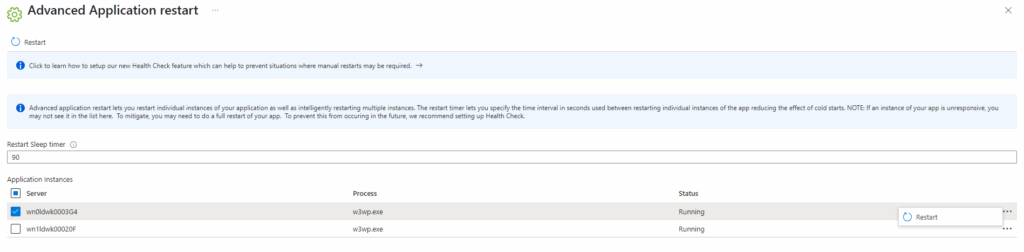
Once in the Advanced Application Restart, you can choose to restart one or as many instances as you want manually or schedule a restart across instances, noting that depending on your Sitecore start up time, you need to ensure enough time to keep your website up.
Reboot Worker REST API
With the previous two tools, it restarts instances… but you may want to replace an instance all together. This is where the Reboot Worker REST API endpoint comes into play. Using the following page, select “Try It” and enter in your information including the subscription, App Service Plan name, and worker name (aka, instance name): App Service Plans – Reboot Worker – REST API (Azure App Service) | Microsoft Learn
This allows you to replace an instance, with a max of one replacement per hour. Important: You cannot batch these calls and have to wait an hour to fully replace a subsequent instance.
Stop/Start Application Service
If you are still experiencing issues and have checked your code and configuration for issues (inclusive of networking and edge devices like CloudFlare) you may need to stop and then start your App Service off hours as the site will go down. The goal of this approach is to try and force Azure to put you on a new Hypervisor running the App Service.
I tend to use a 30 second stop and have gone all the way to 2 minutes when using this option. When I use this option, it is a rare “Blue Moon” event like a Microsoft Platform Update gone wrong creating a bad instance(s).
Scale/Downscale Application Service
If the aforementioned options do not clear out your instance issues, you can attempt to scale and then downscale your App Service Plan to get to a new Hypervisor within Azure as changing Azure SKUs should bring you to a new Cloud hardware infrastructure.
Failing that, and you are 100% positive it’s not an issue with one of the 4 C’s, contact Microsoft via your account representative to troubleshoot.